
Many churches have a section on their site where they host a weekly video of their most recent sermon. In this section we will share how to easily update your sermon.
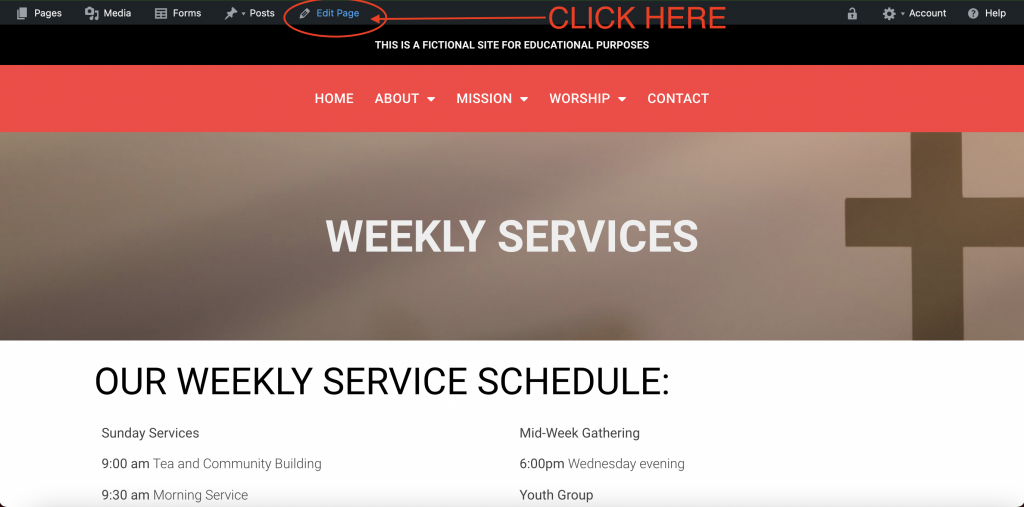
“Edit Page”
Go to the page that hosts the video and click “Edit Page”.
Select the Video
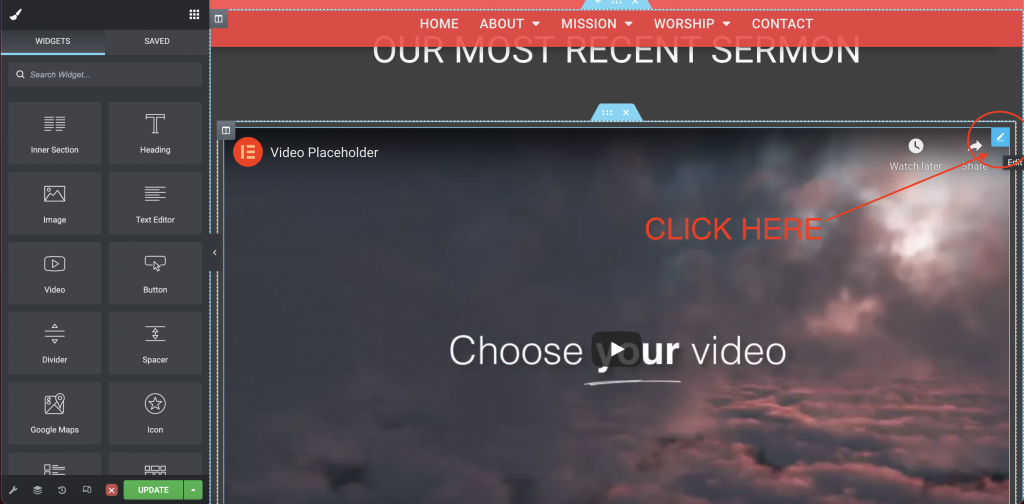
Once in edit mode, scroll down to where the video is and click the blue “Edit Video” button on the top right side of the video.
Replace the Link
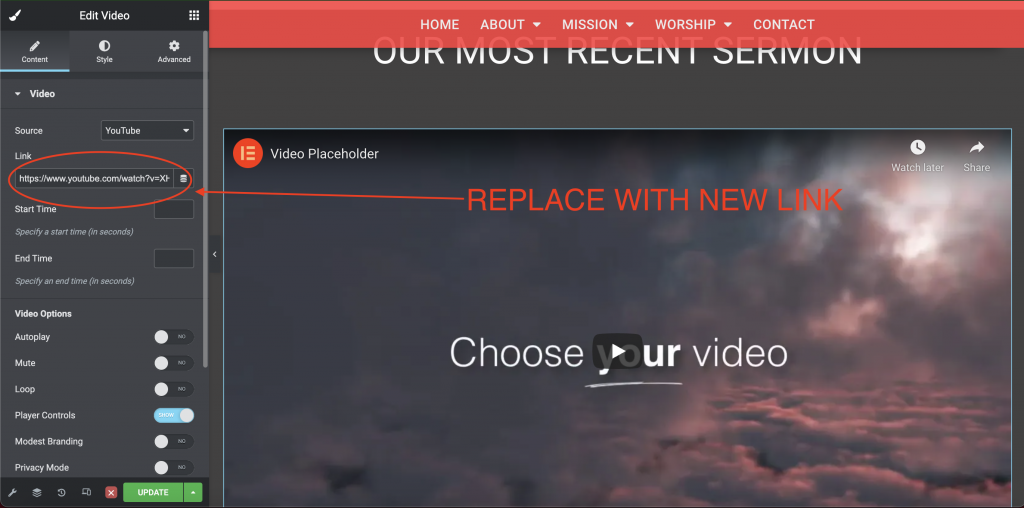
Once you click into the video, settings will appear on the left side of your screen. There is a section that contains the video URL. Delete the old URL. Copy the new URL from the site where the video is hosted (YouTube or Vimeo), and paste it where the old URL used to be.
Save & Exit
Once the video has been replaced, make sure to hit the green “Update” button before exiting the page with the red “X” button.

Final Thoughts
- We do not recommend uploading videos to the Media Library and uploading them that way through the site. It will slow the download speed of your site. We recommend uploading videos to Youtube or Vimeo and then using our “Video” widget.
- If you are uploading from YouTube, make sure the “Source” is set to “YouTube”. If uploading from Vimeo, set “Source” to “Vimeo”.