
Linking a button to a PDF is easy and helpful when you want people to be able to download newsletters, documents, and other PDFs straight from your site!
Upload PDF to Media Library
The first step is uploading your pdf to the media library. You can access the media library by clicking “Media” on the top of your screen in the admin toolbar.

Once you are in your Media Library, click or create the folder you wish to upload to. In the folder click “ADD NEW”.


Go to the Page You Want to Add the PDF Button
Once you have the PDF uploaded, it is time to link it. Go to the page by clicking back to “View Site” and navigating to the page that you want to link the PDF to.


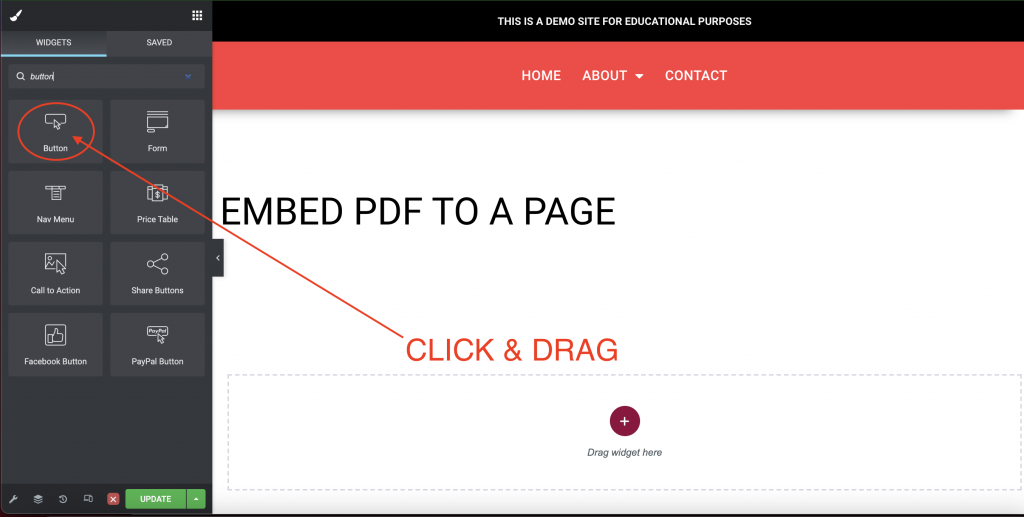
Search “Button” in the Widget Search bar
Once you find the “Button” widget, click and drag it where you want your pdf button to appear.
Link Button
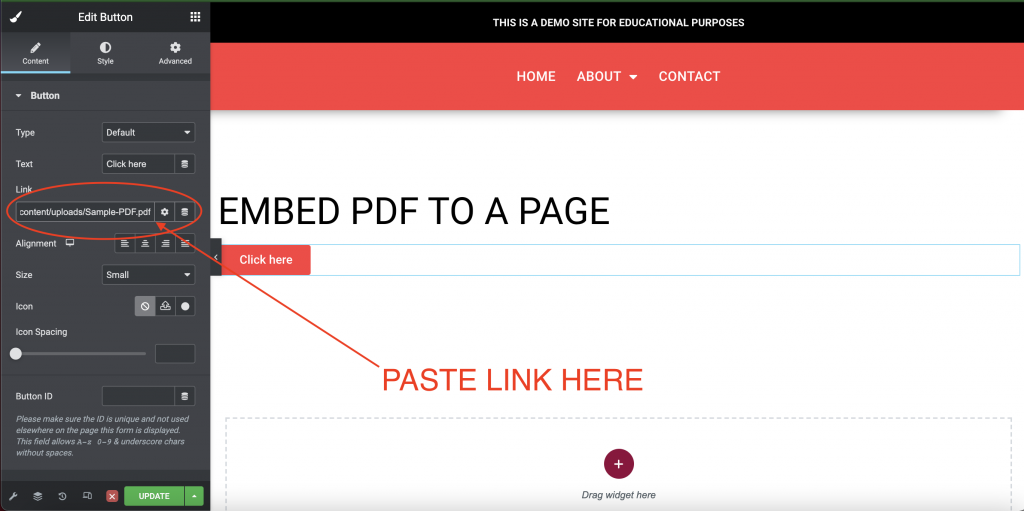
Once you have the button in place, go ahead and paste the link that you have in your clipboard where it says “Link”.
Format Button
Now that the button is linked to your PDF all you have to do is format it to your liking. To edit the formatting check out our tutorial on adding and editing buttons.
Save & Exit
Once the button is linked and edited to your liking, be sure to “Update” and “Exit”.